Creating AWS architecture diagrams has traditionally been one of those tasks that developers and solutions architects love to procrastinate on. You know the drill: dragging and dropping icons in tools like Lucidchart or draw.io, hunting for the latest AWS service icons, spending hours on layout and alignment, and then starting all over again when requirements change. What if I told you there’s a better way?
Here comes Kiro CLI with Model Context Protocol (MCP) support, a game-changing approach that lets you generate professional AWS architecture diagrams using natural language prompts, right from your terminal.
What is Kiro cli?
Kiro CLI is a command-line interface that brings AI-powered development capabilities directly to your terminal. Built on Claude’s frontier models, it’s designed to help developers write code, debug issues, automate workflows, and yes, create architecture diagrams – all through natural conversation.
Unlike traditional CLI tools that require memorizing specific commands and syntax, Kiro CLI understands what you want to accomplish and helps you get there through an interactive dialogue. It’s like having a senior developer sitting next to you, ready to help with any task.
Key Features about Kiro cli
1. Custom Agents for Specialized Tasks
You can create task-specific agents optimized for your workflows. Want a DevOps agent that knows your infrastructure patterns? Or a diagram specialist that follows your company’s architecture standards? Kiro CLI lets you build and deploy these specialized agents with pre-defined tool permissions, context, and prompts.
2. Advanced Context Management
Kiro CLI maintains project-specific conversation history and understands your codebase through directory-based persistence. It automatically associates chat sessions with your working directories, ensuring relevant context is always available.
3. Native MCP Support
This is where the magic happens for diagram generation. The Model Context Protocol allows Kiro CLI to connect to external tools and data sources, including AWS documentation and diagram generation libraries.
4. Seamless Cross-Platform Experience
If you’re already using Kiro IDE, your configurations transfer seamlessly. Your MCP servers, steering files, and project documentation work in both environments – configure once, use everywhere.
Understanding Model Context Protocol (MCP)
Before diving into diagram creation, let’s understand what makes this possible. The Model Context Protocol, developed by Anthropic, is an open standard that enables AI tools to securely connect to external data sources, tools, and custom servers.
Think of MCP as a universal adapter for your AI assistant:
- MCP Client: The host application (Kiro CLI in our case) that communicates with MCP servers
- MCP Server: Lightweight programs that expose specific tools or resources
- MCP Tools: Model-controlled functions that the AI can automatically discover and invoke
For AWS diagram generation, we’ll use two critical MCP servers:
- AWS Diagram MCP Server: Provides tools to create diagrams using Python’s diagrams library
- AWS Documentation MCP Server: Searches and fetches AWS documentation for best practices
Setting Up Your Environment
Let’s get everything configured so you can start generating diagrams.
Step 1: Install Kiro CLI
Installation is straightforward and takes less than a minute:
curl -fsSL https://cli.kiro.dev/install | bash
Verify the installation:
kiro --version
You should see output like kiro-cli x.x.x
Step 2: Configure Authentication
Kiro CLI supports multiple authentication methods. For quick experimentation, AWS Builder ID is recommended:
kiro login
Follow the prompts to complete authentication.
Step 3: Install Required Dependencies
The diagram generation relies on Python tooling. First, install uv (a fast Python package installer):
pip install uv
If you’re on macOS, you’ll also need Graphviz:
brew install graphviz
For Linux:
sudo apt-get install graphviz
Step 4: Configure MCP Servers
Kiro CLI automatically discovers MCP servers from the configuration file. Create or edit ~/.kiro/settings/mcp.json:
{
  "mcpServers": {
    "awslabs.aws-diagram-mcp-server": {
      "command": "uvx",
      "args": ["awslabs.aws-diagram-mcp-server"],
      "env": {
        "FASTMCP_LOG_LEVEL": "ERROR"
      },
      "autoApprove": [],
      "disabled": false
    },
    "awslabs.aws-documentation-mcp-server": {
      "command": "uvx",
      "args": ["awslabs.aws-documentation-mcp-server@latest"],
      "env": {
        "FASTMCP_LOG_LEVEL": "ERROR"
      },
      "autoApprove": [],
      "disabled": false
    }
  }
}
Step 5: Verify MCP Configuration
Start a Kiro session:
kiro-cli
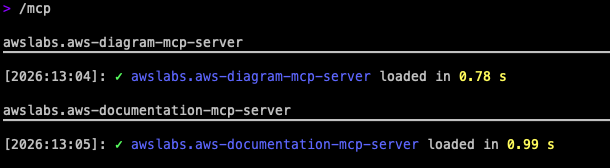
Check your configured MCP servers:
/mcp
You should see both AWS Diagram and AWS Documentation MCP servers listed.
Creating Your First AWS Diagram
Let’s start with a simple three-tier web application architecture.
Basic Three-Tier Architecture
In your Kiro chat session, simply describe what you want:
Create a three-tier web application architecture diagram with:
1. Application Load Balancer in a public subnet
2. Auto Scaling group with EC2 instances in private subnets
3. RDS MySQL database in private subnets
4. S3 bucket for static assets
Include VPC, availability zones, and security groups
Kiro will use the AWS Diagram MCP to generate Python code using the diagrams library and create a visual representation. The diagram will be saved as an image file (typically PNG or SVG).
Understanding the Generated Code
Behind the scenes, Kiro generates code similar to this:
from diagrams import Diagram, Cluster
from diagrams.aws.compute import EC2, AutoScaling
from diagrams.aws.network import ELB, VPC
from diagrams.aws.database import RDS
from diagrams.aws.storage import S3

with Diagram("Three-Tier Web Application", show=False, direction="TB"):
    with Cluster("VPC"):
        with Cluster("Public Subnet"):
            alb = ELB("Application\nLoad Balancer")

        with Cluster("Private Subnet - App Tier"):
            app_group = [EC2("Web Server 1"),
                        EC2("Web Server 2"),
                        EC2("Web Server 3")]
            asg = AutoScaling("Auto Scaling")

        with Cluster("Private Subnet - Data Tier"):
            db = RDS("MySQL\nDatabase")

        static = S3("Static Assets")

    alb >> app_group >> db
    alb >> static
The main feature of Kiro CLI is that you don’t need to know this syntax – just describe what you want, and the AI handles the rest.
Advanced Diagram Patterns
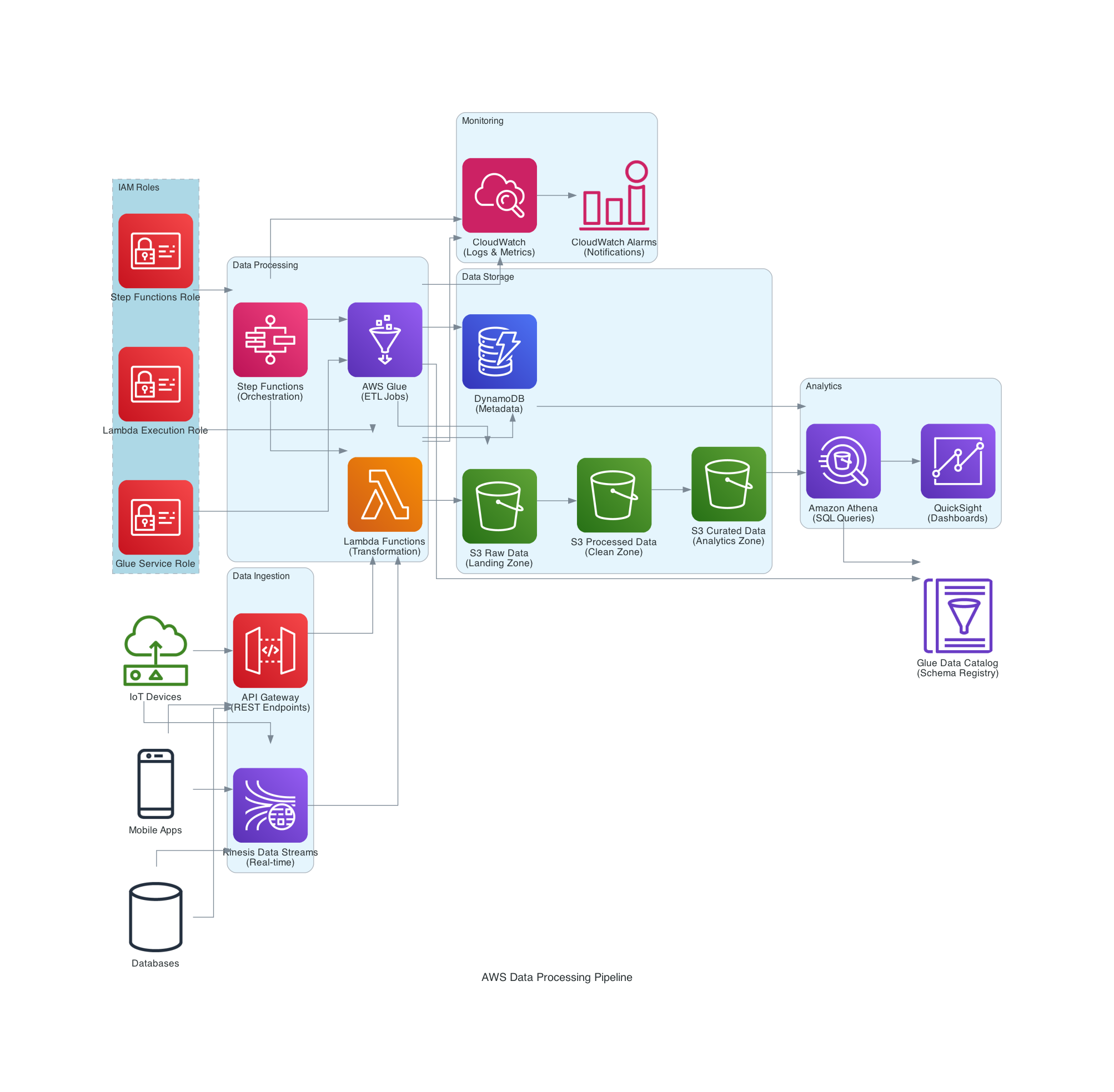
Data Processing Pipeline
For more complex architectures, Kiro CLI really shines. Here’s how to create a sophisticated data processing pipeline:
Create a data processing pipeline diagram using AWS services:

1. Data Ingestion cluster:
   - Kinesis Data Streams for real-time ingestion
   - API Gateway for REST endpoints

2. Data Processing cluster:
   - Lambda functions for transformation
   - AWS Glue for ETL jobs
   - Step Functions for orchestration

3. Data Storage cluster:
   - S3 buckets (Raw, Processed, Curated)
   - DynamoDB for metadata

4. Analytics cluster:
   - Athena for querying
   - QuickSight for visualization

Include data flow arrows, IAM role boundaries, and CloudWatch monitoring.
Ensure AWS best practice visualization.
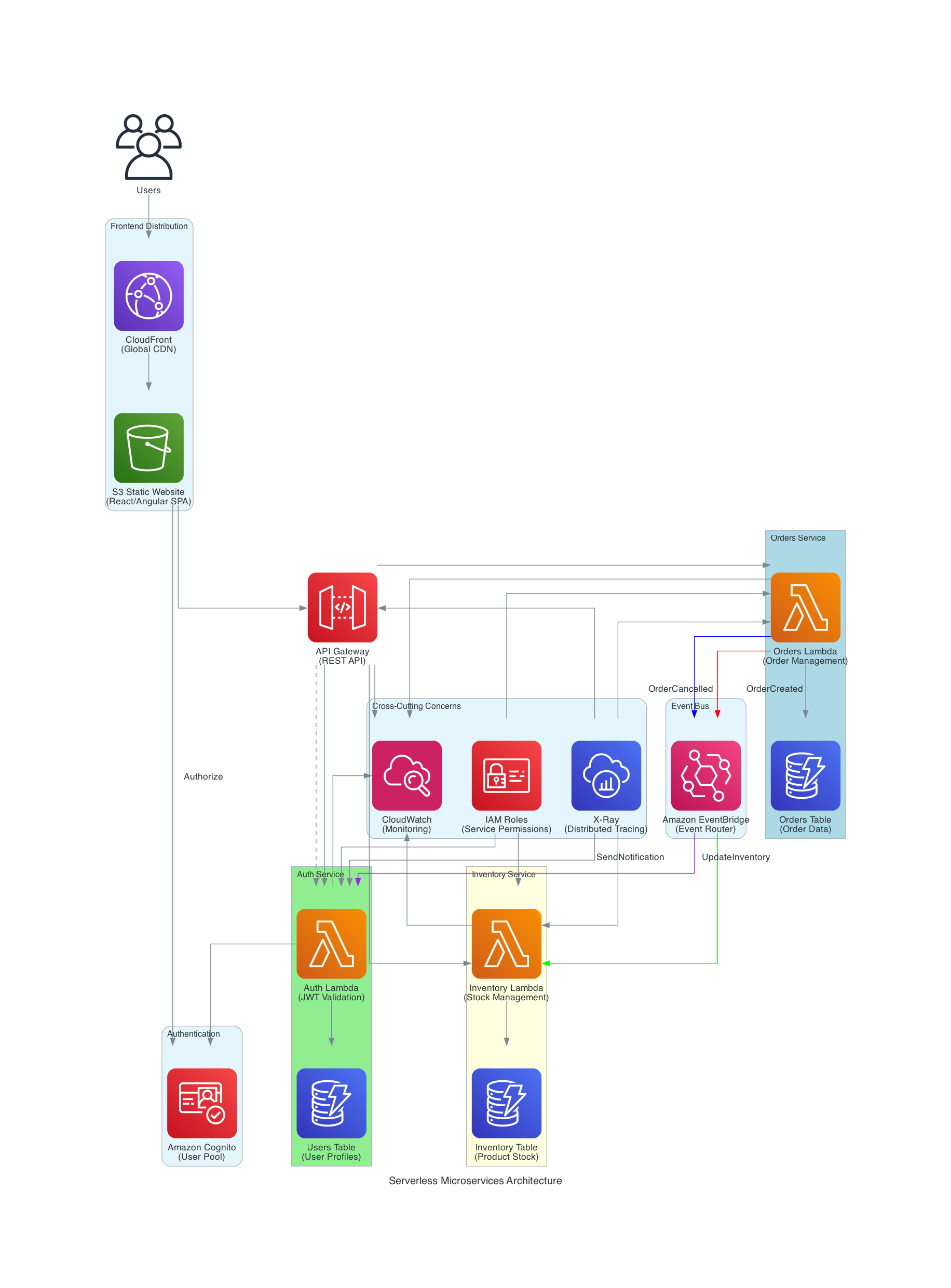
Serverless Microservices Architecture
Design a serverless microservices architecture with:
- API Gateway as the entry point
- Multiple Lambda functions for different services (auth, orders, inventory)
- DynamoDB tables for each service
- EventBridge for inter-service communication
- Cognito for user authentication
- CloudFront for global distribution
- S3 for frontend hosting

Show clear service boundaries and event flows.
Container-Based Architecture
Create an EKS-based microservices diagram showing:
- VPC with public and private subnets across 3 AZs
- Application Load Balancer
- EKS cluster with multiple node groups
- ECR for container images
- RDS Aurora for database
- ElastiCache for caching
- CloudWatch for logging and monitoring

Include networking flow and security group relationships.
 Perfect! I've created a comprehensive EKS microservices architecture diagram
that follows AWS best practices. Here's what the diagram includes:

## Architecture Components:

VPC Design (Multi-AZ):
- VPC with CIDR 10.0.0.0/16 across 3 Availability Zones
- Public subnets (10.0.1-3.0/24) for internet-facing resources
- Private subnets (10.0.11-13.0/24) for EKS worker nodes
- Database subnets (10.0.21-23.0/24) for RDS and ElastiCache

Networking & Load Balancing:
- Internet Gateway for public internet access
- NAT Gateways in each AZ for outbound internet access from private subnets
- Application Load Balancer in public subnets for incoming traffic

EKS Cluster:
- Managed EKS control plane
- Two node groups with different instance types:
  - General purpose (t3.medium) for standard workloads
  - Compute optimized (c5.large) for CPU-intensive tasks
- Microservices deployed as containers (Frontend, API Gateway, User Service,
Order Service, Payment Service)

Data Layer:
- RDS Aurora with primary (writer) and replica (reader) instances
- ElastiCache Redis cluster for caching

Supporting Services:
- ECR for container image storage
- CloudWatch for logging and monitoring

Security:
- Security groups with appropriate port restrictions:
  - ALB SG: Ports 80/443 (HTTP/HTTPS)
  - EKS SG: Ports 443, 10250 (Kubernetes API, kubelet)
  - DB SG: Ports 3306/5432 (MySQL/PostgreSQL)
  - Cache SG: Port 6379 (Redis)

## AWS Best Practices Implemented:

1. High Availability: Multi-AZ deployment across 3 availability zones
2. Security: Private subnets for compute and database tiers, security groups with
least privilege
3. Scalability: Multiple node groups, auto-scaling capabilities
4. Monitoring: CloudWatch integration for logs and metrics
5. Container Management: ECR for secure image storage
6. Network Segmentation: Separate subnets for different tiers
7. Managed Services: Using managed EKS control plane, RDS Aurora, and ElastiCache

The diagram shows the complete traffic flow from users through the internet
gateway, load balancer, to the microservices, and their connections to the
database and cache layers. The orange dashed lines represent security group
associations for each component.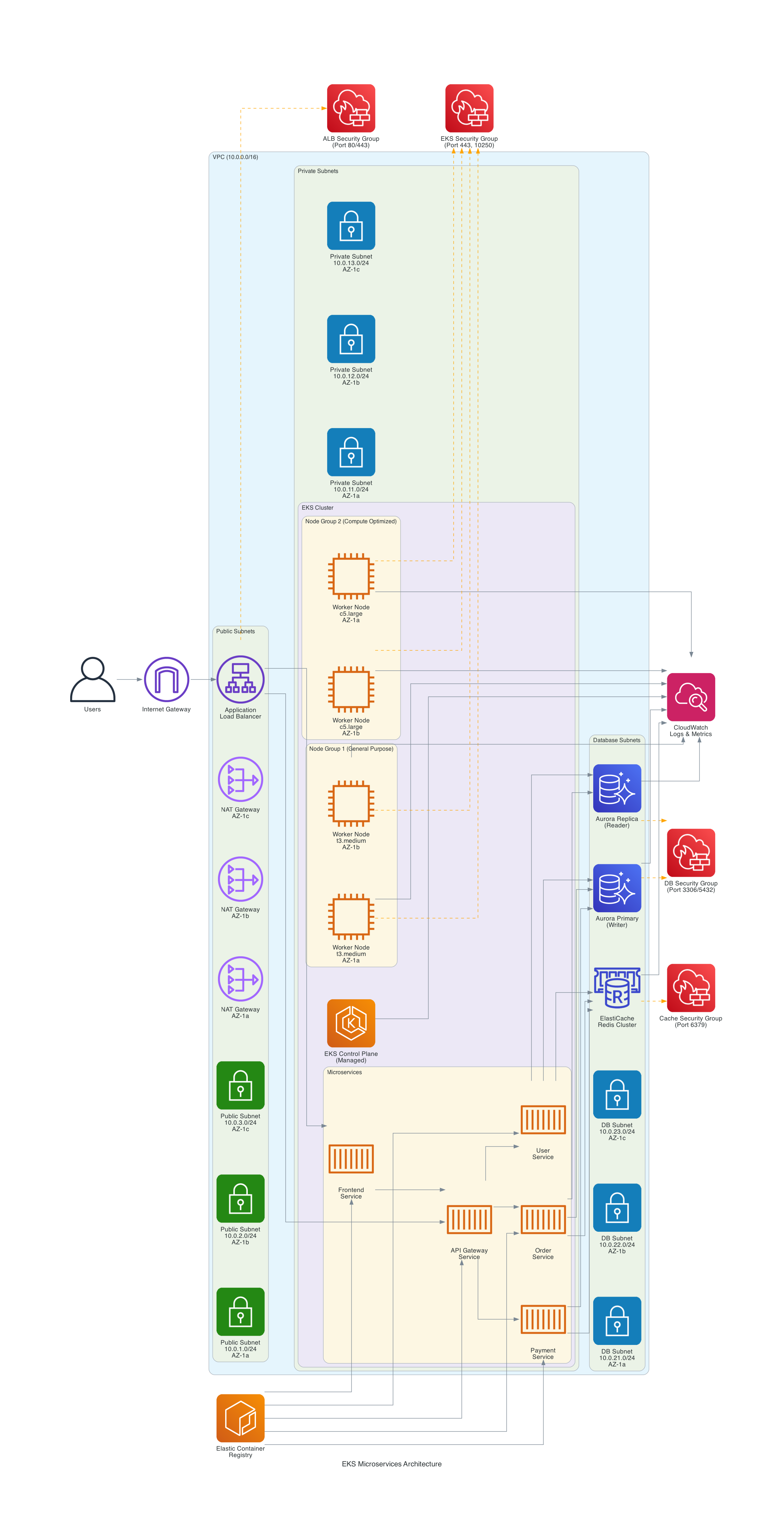
Best Practices for Diagram Generation
1. Be Specific About Your Requirements
The more detailed your prompt, the better the result. Instead of “create an AWS diagram,” specify:
- Which AWS services to include
- How they connect to each other
- Clustering and organisation preferences
- Network boundaries and security groups
- Data flow directions
2. Iterate on Your Diagrams
Kiro CLI excels at iteration. After generating an initial diagram, you can refine it:
Add a CloudFront distribution in front of the ALB
Include an AWS WAF for security
Show the connection to Route 53 for DNS
3. Leverage AWS Documentation MCP
When you’re unsure about best practices, ask Kiro to consult AWS documentation:
Search AWS documentation for best practices on securing RDS databases,
then update the diagram to reflect those recommendations.
Real-World Use Cases
1. Documentation for Stakeholders
When you need to explain your infrastructure to non-technical stakeholders, generate clean, professional diagrams that focus on business flows rather than technical details.
2. Compliance and Audit Requirements
Many compliance frameworks require architecture documentation. Kiro CLI can quickly generate diagrams showing security controls, data flows, and network segmentation.
3. Infrastructure Planning
Before implementing new features, use Kiro to explore different architectural approaches visually. Generate multiple diagram variations to compare trade-offs.
4. Onboarding New Team Members
Create comprehensive architecture diagrams as part of your onboarding documentation. New developers can quickly understand system design and component relationships.
5. Disaster Recovery Planning
Generate diagrams showing your DR setup, including cross-region replication, backup strategies, and failover processes.
Comparing Traditional vs. AI-Powered Diagram Tools
Traditional Approach
- Time: A few hours for a complex architecture
- Learning Curve: Days to weeks to master diagramming tools
- Maintenance: Manual updates for every change
- Consistency: Difficult to maintain across multiple diagrams
- Cost: Subscription fees for professional tools
Kiro CLI Approach
- Time: 5-15 minutes for a complex architecture
- Learning Curve: Minutes – just describe what you want
- Maintenance: Natural language updates
- Consistency: AI ensures standard practices
- Cost: Included in Kiro subscription
Advanced Tips and Tricks
1. Multi-Region Architectures
Create a multi-region architecture showing:
- Primary region in us-east-1 with full stack
- DR region in eu-west-1 with warm standby
- Route 53 health checks and failover routing
- Cross-region replication for S3 and DynamoDB
## Architecture Components

Primary Region (us-east-1) - Active:
- Application Load Balancer distributing traffic
- Multiple EC2 web servers for high availability
- RDS with Multi-AZ deployment for database resilience
- DynamoDB primary table
- S3 primary bucket for object storage
- CloudWatch for monitoring and alerting

DR Region (eu-west-1) - Warm Standby:
- ALB in standby mode (can be activated quickly)
- EC2 instance in warm standby (minimal capacity, can scale up)
- RDS Read Replica for database failover
- DynamoDB Global Tables for automatic replication
- S3 replica bucket with cross-region replication
- CloudWatch for monitoring the DR environment

## Key AWS Best Practices Implemented

Route 53 Health Checks & Failover:
- DNS-based failover routing
- Health checks monitor primary region endpoints
- Automatic failover to DR region when primary fails
- Green arrows show normal traffic flow, red dashed shows failover

Cross-Region Replication:
- **RDS:** Read replicas provide near real-time data replication
- **DynamoDB:** Global Tables enable automatic multi-region replication
- **S3:** Cross-region replication ensures data durability across regions

Warm Standby Strategy:
- Cost-effective approach with minimal resources in DR region
- Can be scaled up quickly during failover
- Balances cost with recovery time objectives (RTO)

This architecture provides robust disaster recovery capabilities while following
AWS Well-Architected principles for reliability and cost optimisation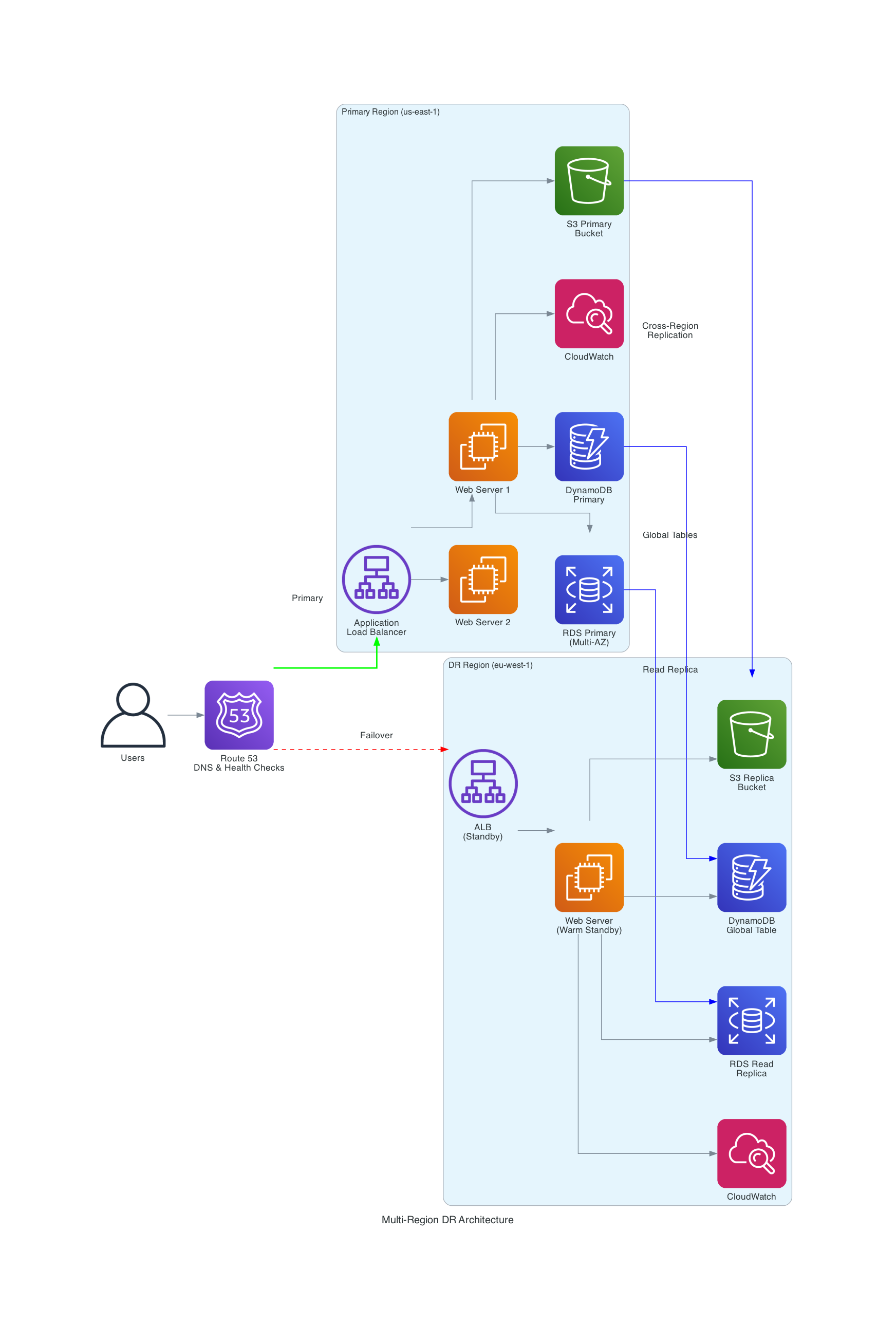
2. Hybrid Cloud Scenarios
Design a hybrid architecture connecting on-premises data center to AWS:
- Direct Connect connection
- VPN as backup
- AWS Transit Gateway
- On-premises resources shown separately
The Future of Infrastructure Documentation
Kiro CLI represents a shift in how we can create and maintain technical documentation. By combining the power of large language models with specialized tools through MCP, we’re moving toward a future where:
- Documentation stays in sync with code automatically
- Architecture diagrams update as infrastructure evolves
- Best practices are enforced consistently
- Knowledge sharing becomes frictionless
Conclusion
Traditional diagramming tools still have their place, but for developers and architects, Kiro CLI with MCP support offers an unprecedented productivity boost. What used to take hours now takes minutes. What required specialised tool knowledge now just requires clear communication.
The real power isn’t just in generating diagrams faster, it’s in lowering the barrier to creating and maintaining quality documentation. When documentation becomes this easy, teams are more likely to keep it current, and that benefits everyone.
Whether you’re building a simple three-tier application or a complex microservices architecture spanning multiple regions, Kiro CLI can help you create professional AWS architecture diagrams that communicate your vision clearly and accurately.
This article reflects my personal experience using AWS Kiro for side projects and creating diagrams, that can use as starting point, following AWS Best Practices